


Troubleshooting Puffco Vaporizers: Fix Heating, Charging & Reset Issues


When a Puffco device suddenly stops working, most users want one thing: a clear fix, fast.
Whether you are dealing with puffco peak not heating up, a puffco peak pro won’t turn on, or a puffco not charging situation, the good news is that many issues can be resolved at home with simple steps.
This guide walks through common problems device by device. The tone is practical and step-based. We will also explain when cleaning is enough, when a reset helps, and when it may be time to replace a chamber or atomizer.
Table of Contents
- 1 Common Puffco Problems and Why They Happen
- 2 Puffco Peak Not Heating Up: Causes and Fixes
- 3 Puffco Peak Pro Not Heating Up or Chamber Not Detected
- 4 Puffco Not Charging: What to Check First
- 5 Puffco Won’t Turn On: Power and Battery Fixes
- 6 How to Reset Puffco Peak and Peak Pro
- 7 Puffco App Not Connecting or Syncing
- 8 Puffco Proxy and Puffco Plus Troubleshooting
- 9 When to Replace the Atomizer or Chamber
- 10 Quick Troubleshooting Checklist
- 11 Frequently Asked Questions About Puffco Problems
- 12 Pro Maintenance: The Golden Rule
- 13 Final Thoughts: Fix First, Replace When Necessary
Common Puffco Problems and Why They Happen
Most Puffco issues fall into four categories:
• Heating failures
• Charging failures
• Power failures
• Connection or chamber detection errors
Puffco Error Light Meanings (2026 Models)
Red–Blue–Red–Blue: Chamber connection error
Red (repeated flashes): Overheating or short circuit
Orange: Chamber short or hardware fault
Rainbow lights: Mode or system error
Understanding LED signals helps diagnose issues faster before disassembling the device.
When users search for “puffco not working,” the cause is usually one of three things: a dirty connection point, a drained battery, or a worn chamber.
Common Puffco Peak problems include:
- Device lights up but does not heat
- Device blinks red or white
- Chamber not detected
- Unit will not power on
- App connection drops
The key is to diagnose calmly before assuming a major failure.
Puffco Peak Not Heating Up: Causes and Fixes
If your puffco peak not heating up, start with the basics.
Heating issues are usually caused by:
- Loose or over-tightened atomizer
- Dirty gold connection pins
- Low battery
- Worn atomizer
Many users also search for “puffco peak wont heat up” or ask “why is my puffco not heating up.” In most cases, the solution is mechanical rather than electronic.
Step 1: Check Battery Level
Before troubleshooting further, confirm the device is fully charged. A low battery can power lights but fail to heat properly.
Step 2: Remove and Reinstall the Atomizer
Unscrew the atomizer gently. Clean the base and gold pins with isopropyl alcohol and allow them to dry completely.
Reinstall carefully. Do not over-tighten. Over-tightening can prevent proper contact.
Step 3: Inspect for Residue
If concentrate has leaked into the connection area, heating may fail intermittently.
Step 4: Test After Cleaning
If the puffco peak not heating up issue continues after cleaning and charging, the atomizer may need replacement.
Fix Puffco Peak Not Heating Up – Checklist
- Fully charge device
- Remove and clean atomizer
- Clean gold pins and connection plate
- Reinstall without over-tightening
- Test heat cycle
- Replace atomizer if problem continues
Repeated heating failure usually indicates normal atomizer wear rather than base failure.
Puffco Peak Pro Not Heating Up or Chamber Not Detected
If your puffco peak pro not heating up, the issue often relates to the chamber connection.
The Peak Pro uses a 3D chamber design. If the chamber is not seated properly, the device may display a chamber error.
Many users encounter “chamber disconnected puffco peak pro” or puffco peak pro chamber not detected messages.
Common Causes
- Chamber not fully seated
- Dirty base contacts
- Firmware needing update
- Worn chamber
Most connection issues are caused by residue buildup or improper chamber installation rather than hardware failure.
Step 1: Remove the Chamber
Allow device to cool fully before removing.
Step 2: Clean Contact Points
Use a cotton swab with 99% isopropyl alcohol to clean both chamber threads and base contacts. Lower concentrations (such as 70%) contain water and may cause corrosion over time.
If the gold pins appear stuck or recessed, they can be gently lifted using a small tool or tweezers to restore proper contact.
Step 3: Re-seat Chamber
Reinstall gently until snug. Do not force.
Step 4: Restart Device
Power off fully. Turn back on.
If the puffco peak pro not heating up issue persists, perform a reset (covered below).
If cleaning does not fix the puffco peak pro chamber not detected error, chamber replacement may be necessary.
A puffco atomizer not connecting situation typically resolves after cleaning or reseating.
Before replacing the chamber, check for firmware updates in the Puffco app.
This is especially important for newer chamber types and updated device revisions.
In some cases, chamber detection errors are caused by outdated firmware rather than hardware failure.
If using a 3DXL chamber, ensure your device firmware is updated, as older firmware versions may not recognize newer chambers.
Puffco Not Charging: What to Check First
If your puffco not charging, do not assume battery failure immediately.
Charging problems often come from cables or ports.
Users commonly ask “why is my puffco not charging” or “puffco wont charge.” The steps below apply to both Peak and Peak Pro.
Step 1: Test Cable and Adapter
Use a different USB cable and wall adapter. Charging accessories fail more often than devices.
Step 2: Inspect Charging Port
Look for debris inside the port. Gently clean with compressed air or a wooden toothpick.
Step 3: Check Charging Base (If Applicable)
If using a charging dock, ensure alignment is correct.
Step 4: Allow Time
If battery is deeply drained, it may take several minutes before LED indicators activate.
Charging Issue Diagnosis Table
| Symptom | Likely Cause | Action |
|---|---|---|
| No LED response | Dead cable | Replace cable |
| LED flashes briefly | Low battery | Leave plugged in 10–15 min |
| Charges intermittently | Dirty port | Clean port carefully |
| Will not hold charge | Battery wear | Consider service or replacement |
LED Error Code Quick Diagnosis
| LED Pattern | Issue | Fix |
|---|---|---|
| Red–White flashing | Chamber connection error | Clean pins, reseat chamber |
| Red flashing (5x) | Short circuit | Replace chamber |
| Blue blinking | Bluetooth issue | Restart phone/app |
| Rainbow lights | Mode/system error | Reset device |
For puffco peak not charging or puffco peak pro not charging, the same diagnostic steps apply.
If the device does not respond to charging, it may be in a deep discharge state.
Try connecting it to a low-power USB source (such as a laptop) instead of a high-output wall adapter to help recover the battery controller.
Puffco Won’t Turn On: Power and Battery Fixes
If your puffco peak pro won’t turn on, check power activation first.
Some users search “why won’t my puffco turn on” or “puffco not turning on.”
Step 1: Long Press Power Button
Hold for 3–5 seconds. Quick taps will not power on.
Step 2: Charge Fully
Even if lights do not show immediately, allow at least 20 minutes of charging.
Step 3: Inspect LED Behavior
No lights at all may indicate deep battery discharge.
Step 4: Consider Battery Condition
If device is several years old and will not power after charging attempts, battery degradation may be the cause.
In rare cases, users may need to explore puffco peak pro battery replacement through authorized service channels.
If puffco peak won’t turn on after full charge and reset, contact support.
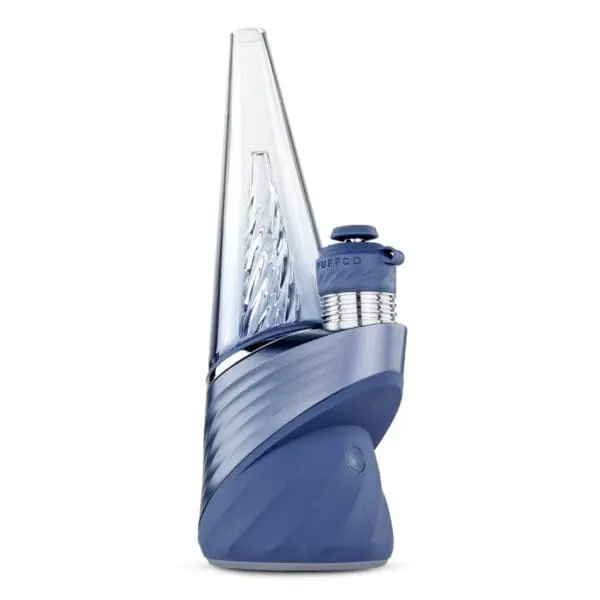
How to Reset Puffco Peak and Peak Pro
Resetting can resolve firmware or connection glitches.
How to Reset Puffco Peak Pro (Soft Reset)
- Power device off.
- Hold power button for 20 seconds.
- Release.
- Turn device back on.
This often resolves minor heating or chamber errors.
Hard Reset Puffco Peak Pro
If soft reset fails:
- Power off.
- Hold button for 25–30 seconds.
- Device may blink or reset internally.
This is sometimes called a hard reset puffco peak pro.
Factory Reset Puffco Peak Pro (App Method)
- Open Puffco app.
- Navigate to device settings.
- Select factory reset if available.
A factory reset puffco peak pro may clear custom profiles.
How to Reset Puffco Peak (Original)
- Power off.
- Hold button for 20 seconds.
- Restart.
If you are searching how to reset puffco peak pro or how to reset puffco peak, these steps typically solve minor glitches.
Resetting does not usually delete firmware but may remove custom settings.
Puffco App Not Connecting or Syncing
If your puffco peak pro not connecting to app, start with Bluetooth basics.
Step 1: Toggle Bluetooth Off and On
Restart phone Bluetooth.
Step 2: Close and Reopen App
If the puffco app not working, fully close and reopen.
Step 3: Forget Device and Re-Pair
Remove device from Bluetooth list and reconnect.
Step 4: Check Firmware
Outdated firmware may cause puffco not connecting to app issues.
Reinstalling the app can resolve persistent sync errors.
Puffco Proxy and Puffco Plus Troubleshooting
Puffco Proxy Not Turning On
If your puffco proxy not turning on, charge fully and perform a long press reset.
If no response after charging, inspect cable and port.
Puffco Proxy Not Charging
For puffco proxy not charging, try alternate cable and clean port carefully.
Puffco Plus Not Heating
If your puffco plus not heating, remove and clean the chamber and battery contacts.
Coil or chamber replacement may be required after extended use.
How to Reset Puffco Plus
- Power off.
- Hold button for 10–15 seconds.
- Restart device.
This usually resolves minor connection issues.
When to Replace the Atomizer or Chamber
Heating components wear over time.
Signs of failure include:
- Burnt taste
- Intermittent heating
- Flashing error lights
- Visible coil damage
- Chamber not detected repeatedly
If cleaning does not resolve heating problems, replacement is typically the solution.
Shop Replacement Puffco Atomizers and Chambers if your current one shows consistent failure signs.
Quick Troubleshooting Checklist
Before opening a support ticket:
- Fully charge device
- Test different charging cable
- Clean all contact points
- Remove and reseat chamber
- Perform soft reset
- Update firmware
- Allow device to cool fully before testing
Most Puffco issues resolve within these steps.
Frequently Asked Questions About Puffco Problems
Why is my Puffco not heating up?
Most heating issues come from dirty contacts or a worn atomizer.
Why won’t my Puffco turn on?
Battery may be deeply drained. Charge fully and attempt long press reset.
How do I know if my Puffco is charging?
LED indicators should pulse or flash. If not, test cable and outlet.
Do I need a battery replacement?
If device will not hold charge after troubleshooting, battery degradation may be the cause.
Can I fix chamber errors at home?
Yes. Cleaning and reseating usually resolves chamber detection errors.
Does resetting delete app data?
A factory reset may remove custom heat profiles but does not typically remove firmware.
Pro Maintenance: The Golden Rule
Most Puffco issues in 2026 are caused by improper cleaning habits.
Always remove the chamber before deep cleaning the base.
Cleaning the base with the chamber attached can push residue into contact points and lead to connection errors.
Proper maintenance significantly reduces long-term device issues.
Final Thoughts: Fix First, Replace When Necessary
Most Puffco issues are routine maintenance concerns, not permanent failures.
Start with cleaning, charging, and reset steps. Replace chambers or atomizers only when troubleshooting confirms wear.
If you need parts or want to compare updated models, explore the Puffco Peak collection and replacement chambers available at Haze Smoke Shop USA.
Calm diagnosis prevents unnecessary replacement.
